Swale & Sign · Interactive sample · 1.5.1

Try the print workflow.

Find a sample in its authored text, then choose a flat label or folded table card, type size, paper and selection. Show the current selected label on its sheet. Use Undo / Redo to recover those choices, then inspect the browser’s Print / Save PDF output. The six records are fictional and their words are fixed in this preview.

The separate offline studio adds editable records, CSV import/export and portable projects. Check current availability, edition and licence on the Codester seller page ↗.

Exhibition print studio · 1.5.1

Field Labels.

Guide ↗

Fictional sample project. Download a project file to keep your work.

No earlier edit in this tab.

Up to 50 edit steps in this tab. Download a project to keep your work.

02 · Set the words

Edit this label

The supplied collection is fictional. Replace these examples with your own checked facts.

Your text stays as written. A label that is too full needs shorter copy or a larger format.

Work stays in this browser tab. Download the project JSON to keep it; there is no automatic save.

03 · Check the fit

On paper

Checking the layout…

    Print at 100% / Actual size. Turn browser headers and footers off.

    The actual full offline edition · silent recording

    See the authoring workflow.

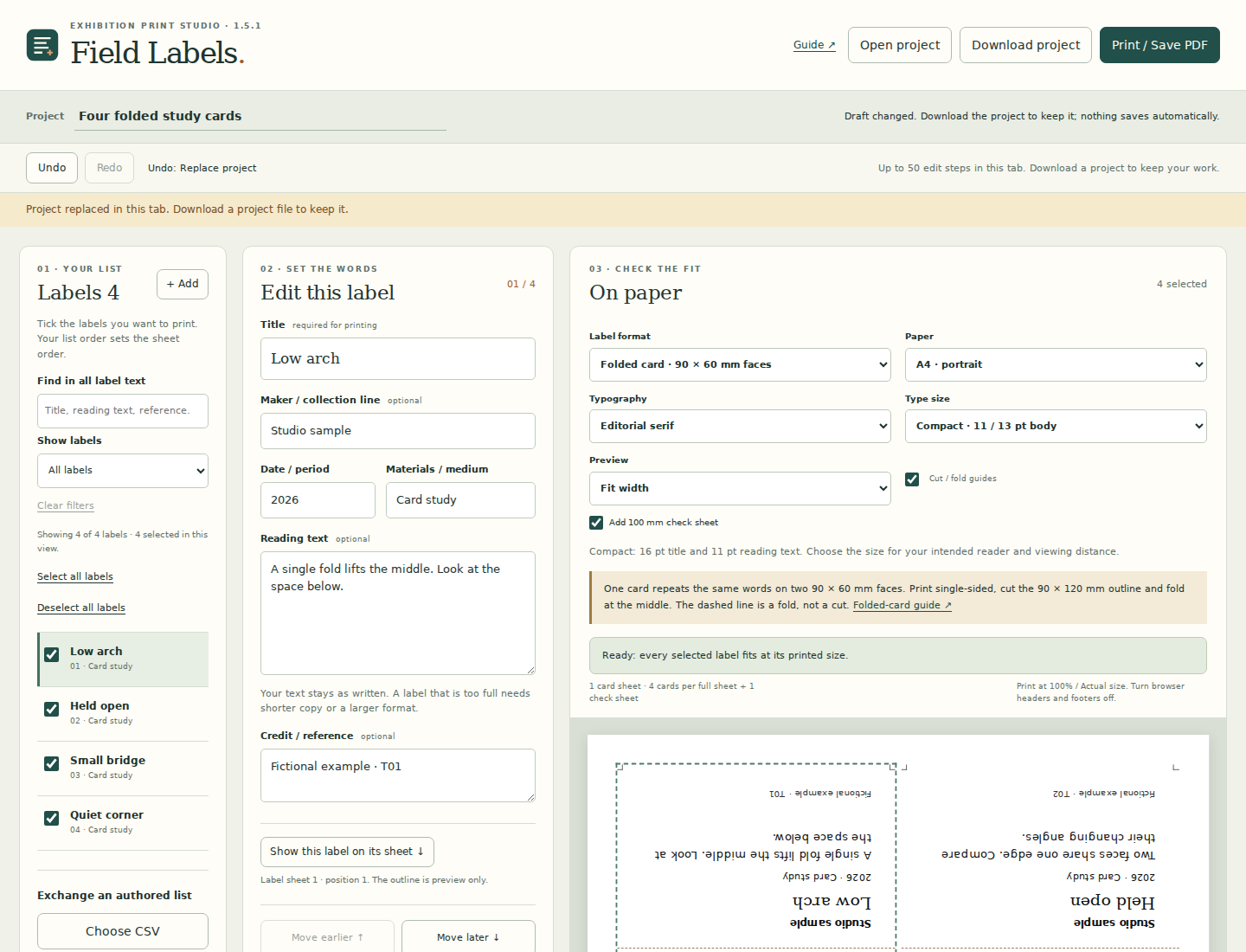
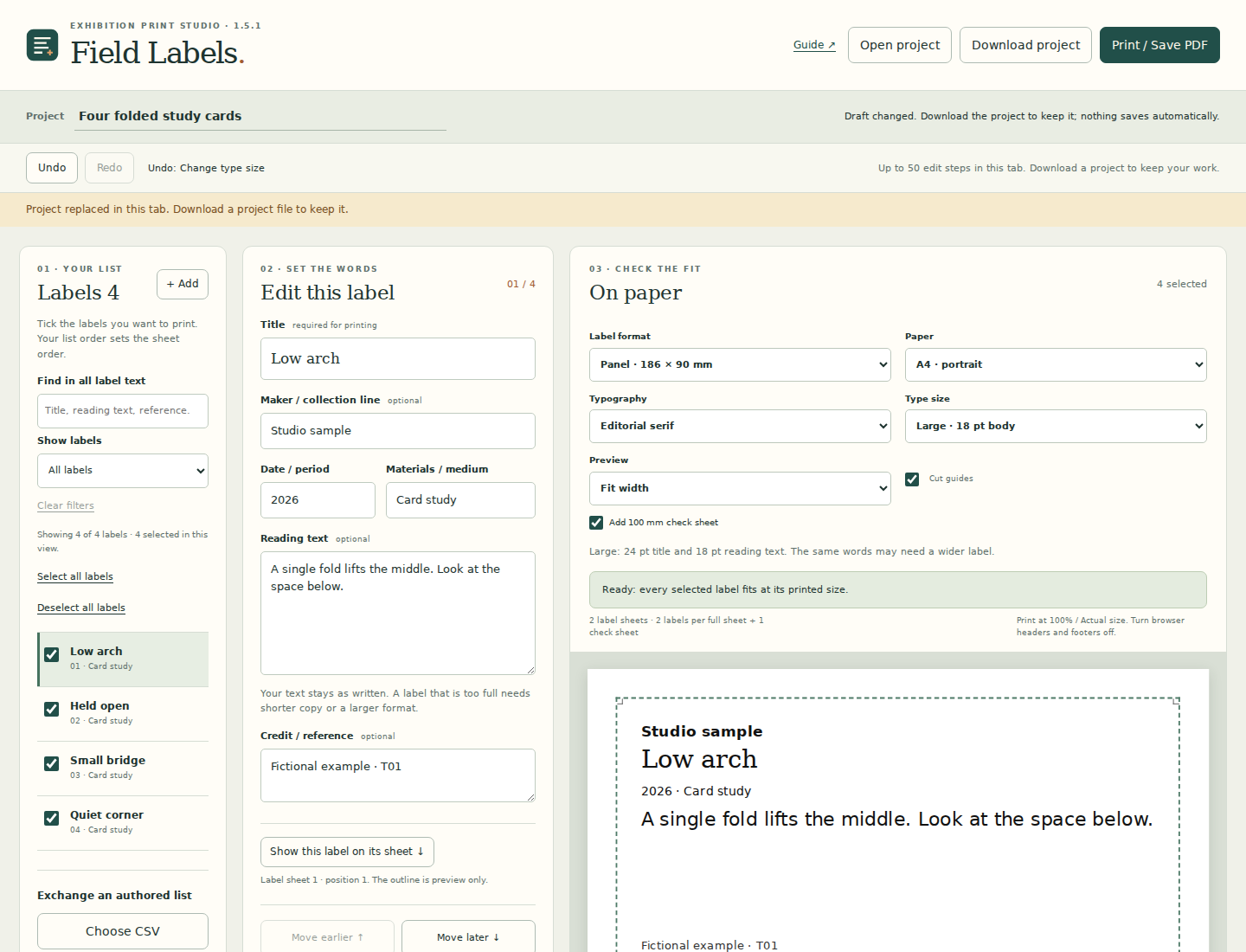
    This recording uses the complete 1.5.1 studio with fictional records: a checked local CSV, settings changed before confirmation, record search, an all-record CSV export, folded table cards, cut/fold guide choices, ordinary glyph overhangs, a blocked tall-accent example, Undo / Redo, the complete four-card project, an edit repeated on both faces and a real version 3 project download. The current settings stay when its CSV list is confirmed. The interactive sample above keeps its words fixed.

    Read the walkthrough transcript
    1. Full offline edition · actual local workflow Six fictional records. No account or server.
    2. Check a local CSV before replacing the list. The open draft stays until you choose.
    3. Change paper and type while the choice is open. Those current settings belong to your draft.
    4. Replace labels keeps the current name and settings. Project JSON instead restores the whole file.
    5. Find a word across all six text fields. One row is shown; all six records remain selected.
    6. Download every record as six-column text CSV. Hidden records stay; print settings use project JSON.
    7. Choose Folded card: six cards, twelve text faces. The same words repeat; the upper face is rotated.
    8. Ordinary letter overhangs remain visible. Text ink keeps a clear cut/fold inset.
    9. This tall supported accent crosses the safe inset. The ink check blocks printing without shortening it.
    10. Undo restores the actual fitting title. The print result is checked again.
    11. Show the actual selected-order card on its sheet. A card is one cut rectangle with two faces.
    12. Turn printed cut and fold guides off if needed. The preview still shows the middle fold.
    13. Undo restores the previous guide choice. Your record text stays unchanged.
    14. Redo reapplies the print setting. History belongs to this open tab.
    15. Open the complete four-card fictional project. JSON replaces the whole checked draft after confirmation.
    16. Edit one record: both faces use those exact words. Each face is checked without shrinking the type.
    17. Keep the actual version 3 project and text CSV. The project retains paper, selections and folded format.
    18. Print single-sided at 100%; inspect and measure. Cut the outline, fold the middle, trial your stock.

    The captions sit below the recorded app; there is no soundtrack, customer material or simulated purchase. A downloaded project is separate from a print export. Keep your actual file and inspect the final PDF.